
Manual Table Of Contents
- Design Philosophy
- Quick Start
- Location Details
- Settings
- Components
- Additional Information
- Advanced
Search & Filter
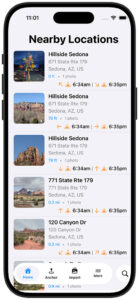
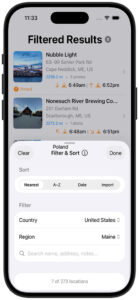
The magnifying glass in the tab bar opens the Filter & Sort sheet — a unified panel for sorting your location list, narrowing it by country and region, and searching by name, address, notes, or date. Filters stack on top of each other, so you can combine a country, a region, and a text search in a single step.
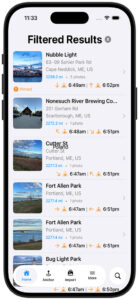
When any filter or non-default sort is active, the title changes to Filtered Results and a small × button appears beside it. Tap × to clear everything and return to the full list in one go.
Sort
Four sort modes are available from the segmented control at the top of the sheet.
Nearest sorts by your distance from each location. This is the default — tapping × always returns here.
A–Z sorts alphabetically by location name.
Date sorts by when the location was added, newest first.
Import shows only locations created or updated during your most recent import session — equivalent to Lightroom’s Previous Import collection. After every import, GeoLog automatically switches to Import mode so you can immediately see what just came in. Tap × when you’re done reviewing to return to your full library.
Filter
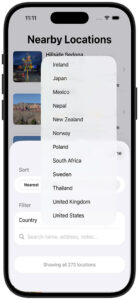
Country
Tap Country to open a picker built from the locations already in your library — only countries you actually have locations in appear. If you’ve never added a location in Germany, Germany won’t be in the list. Add a location there and it appears automatically. Selecting a country narrows the entire list to locations within that country and unlocks the Region filter below it.
Region
Region appears once a country is selected, and like the Country list it is built entirely from your library — only regions you have locations in are shown. If you have no photos from Nebraska, Nebraska won’t appear. For the United States, Canada, and Australia, abbreviated region codes are expanded to their full names — ME shows Maine, TX shows Texas, and so on. Combining a country and a region is the fastest way to pull up a specific trip or shooting area.
Text Search
The search field matches against everything GeoLog knows about a location. You don’t need to remember exactly what you named something — any of these will find it:
Location name — the title you gave the location when you saved it.
Example:
lighthouse,Hidden Falls,studio
Address — the street address, city, state, or country from the reverse-geocoded address.
Example:
Main St,Portland,Oregon,France
Notes — anything you wrote in the notes field for that location.
Example:
blue hour,no parking,best in winter
Date — when a photo at that location was taken. GeoLog checks the timestamp of every photo at a location, including gallery photos, not just the main photo or the location creation date. Dates can be written several ways:
| What you type | What it matches |
|---|---|
2024 | Any location with a photo from 2024 |
March or Mar | Any location with a photo taken in March (any year) |
March 2024 or Mar 2024 | Locations with photos from March 2024 |
2024-03-15 | Locations with a photo taken on that specific date |
How Filters Combine
Country and region narrow the list first. The text search field then runs within that filtered set. Selecting United States → Maine and then typing April 2024 finds all your Maine locations that have a photo taken in April 2024 — nothing outside Maine, nothing outside that date range.
The footer of the sheet always shows how many locations match: 7 of 273 locations, for example. This updates live as you type or change filters.
The Filtered Results Indicator
Whenever any filter is active — a non-default sort, a country, a region, or any text in the search field — the home screen title changes to Filtered Results and the × button appears beside it. Tap × to reset everything: sort returns to Nearest, country and region clear, and the search field empties.
Tips for Finding a Specific Shot
- You scouted it last spring but can’t remember the name → search
April 2024or justApril - You know it was somewhere in Vermont → filter by United States → Vermont
- You want everything from a trip to Japan → filter by Country → Japan
- You added a note about golden hour → search
golden - You just finished importing and want to review what came in → tap Import in the Sort row
- You want all your Maine lighthouses from 2023 → filter United States → Maine, then search
lighthouse 2023
Any combination works — country, region, and text search all narrow the same list simultaneously.
In-App Help
Tap the ⓘ button beside the Filter & Sort title for quick in-context examples covering date search syntax, how filters combine, and why a country or region might not appear in the list.