
Version 2.1 – January 2026
PhotoSlate — Location Data Slate
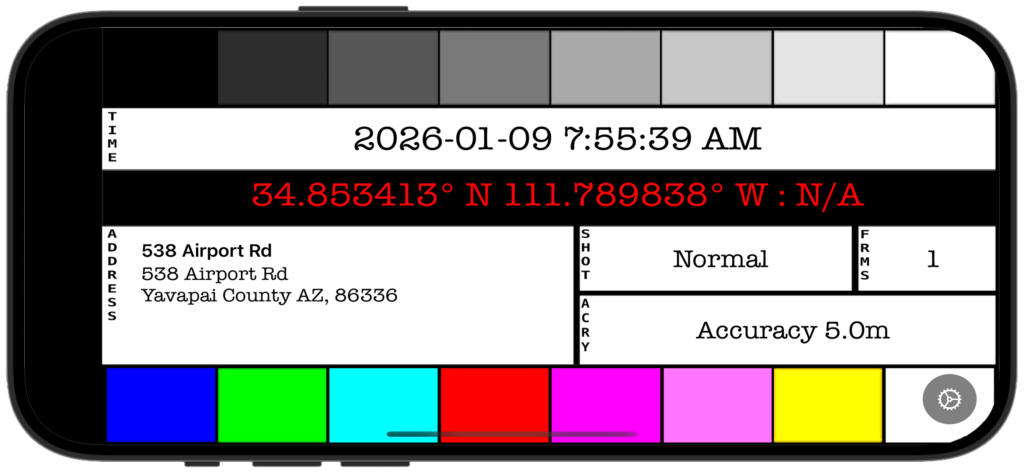
PhotoSlate displays your GPS coordinates, compass heading, address, and time on a classic camera slate — photograph it with your camera and you have a permanent location record embedded in the first frame of every sequence.
What PhotoSlate includes
| Feature | What it does |
|---|---|
| GPS coordinates | Displays latitude and longitude in your choice of decimal, degrees-minutes, or degrees-minutes-seconds format. |
| Compass heading | Shows the direction you were pointed when the slate was photographed, for orientation reference in post. |
| Reverse geocoded address | Resolves your GPS position to a readable three-line address — location name, street, city and ZIP. |
| Timestamp | Shows current date and time, updated continuously, in ISO, US, or European format with 12- or 24-hour time. |
| Shot type indicator (SHOT) | Marks the sequence type: Normal, Bracketed, HDR, Multiple, Panorama, Focus Stack, or General. Tap to cycle. |
| Frame count indicator (FRMS) | Records how many frames belong to the sequence, 1–9. Tap to cycle. |
| Grayscale reference strip | Nine calibrated bars from black to white across the top of the slate, for white balance and exposure reference. |
| SMPTE color bars | Eight color reference bars at the bottom, toggle-able in Settings. |
Getting started
Step 1 — Download and grant permissions
Open PhotoSlate and grant Location permission when iOS prompts you. The app requires location access to display GPS coordinates. Without it, the slate will show N/A in the coordinate fields.
Step 2 — Photograph the slate
Hold your iPhone in landscape orientation and wait for the GPS coordinates to appear and stabilize — typically 10 to 30 seconds outdoors. Raise screen brightness to maximum. Frame the entire slate with your camera, focus on the center date and time, and take a clear photograph. This becomes the anchor frame for everything that follows in your sequence.
Step 3 — Configure your formats in Settings
Tap the gear icon to open Settings. Choose your preferred date format (ISO, US, or European), time format (12- or 24-hour), and GPS coordinate format (decimal, degrees-minutes, or degrees-minutes-seconds). Toggle color bars on or off. These settings persist between sessions.
Step 4 — Explore the in-app help
Tap the ? button on any screen for detailed guidance on every field and option. The in-app help covers the full workflow, GPS accuracy, post-processing, and more.
Permissions
Location → Always or While Using the App PhotoSlate needs location access to display your GPS coordinates, heading, and reverse geocoded address. If permission is set to Never, the coordinate and address fields will show N/A and the slate will contain no location data.