Version 2.0 – January 2026
What is PhotoSlate?
PhotoSlate is a digital slate app for photographers whose cameras don’t have GPS. Like a filmmaker’s clapperboard, you photograph the slate at the start of each shoot to embed location and time metadata into your photo sequence.
Perfect for:
- Cameras without built-in GPS
- Film photography
- Multiple camera setups
- Location documentation
Quick Start
- Open PhotoSlate on your iPhone or iPad
- Grant location permission when prompted
- Wait for GPS to lock (10-30 seconds)
- Photograph the screen with your camera
- Now shoot with your camera—the slate photo has your location data
Understanding the Slate
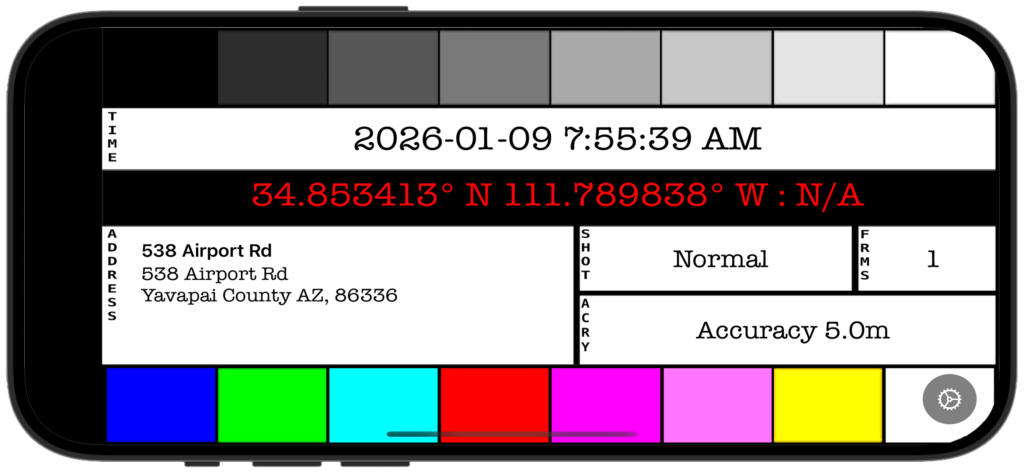
The slate displays several key pieces of information:
Grayscale Reference Strip (Top)
Nine bars from black to white—useful for:
- White balance reference
- Exposure checking
- Monitor calibration
Timestamp
Large centered display showing current date and time:
- Updates in real-time
- Configurable format (see Settings)
- Shows your current timezone
GPS Coordinates
Bright red text on black background for maximum visibility:
- Latitude and longitude
- Compass heading (if available)
- High contrast for easy camera capture
Address
Left side shows three lines:
- Location name or landmark
- Street address
- City, state, ZIP
Color Bars (Optional)
Bottom shows 8 SMPTE-inspired color bars—useful as color reference.
Basic Workflow
1. Before Your Shoot
Set up PhotoSlate:
- Launch the app
- Wait for GPS lock (coordinates appear and stabilize)
- Choose your preferred date/time format in Settings
- Orient your iPhone/iPad in landscape (horizontal)
Increase brightness:
- Swipe down from top-right on iPhone
- Drag brightness slider to maximum
- This ensures your camera can clearly read the display
2. Capture the Slate
With your main camera:
- Frame the entire PhotoSlate screen
- Focus on the center date/time area
- Take a clear, sharp photo
- Verify the image is readable (zoom in if needed)
Important: This slate photo should be the first frame in your sequence at each location.
3. Shoot Normally
Put your phone away and shoot with your camera. The slate photo now contains all the location metadata you need for this sequence.
4. Moving to New Location
When you move to a different location:
- Open PhotoSlate again
- Wait for GPS to update (usually a few seconds)
- Photograph the new slate
- Continue shooting
Settings
Tap the “About” area at the bottom of the screen to access settings.
Date Format
- Y/M/D: 2026-01-11 (ISO standard, recommended)
- M/D/Y: 01/11/2026 (US format)
- D/M/Y: 11/01/2026 (European format)
Time Format
- 12-hour: 2:35:47 PM (with AM/PM)
- 24-hour: 14:35:47 (military/European style)
GPS Format
- Decimal: 34.853413° (most compact)
- Degrees-Minutes: 34° 51.205′ (moderate detail)
- Degrees-Minutes-Seconds: 34° 51′ 12.3″ (full precision)
Color Bars
Toggle the SMPTE color reference bars on/off at the bottom of the display.
Tips
For Best Results:
- Shoot the slate outdoors for fastest GPS lock
- Frame the slate tightly so text is readable
- Use good lighting—avoid screen glare
- Keep slate photo as first frame of each location
GPS Accuracy:
- Outdoor: Best (usually under 10 meters)
- Near windows: Good (10-20 meters)
- Deep indoors: Poor or unavailable
- GPS lock takes longer on first launch (30-60 seconds)
Organization:
- One slate per location or time period
- Slate photos serve as visual separators
- In long shoots, re-photograph when lighting conditions change significantly
- Use slate as reference for EXIF editing later
Lighting Challenges:
- Bright sunlight: Max brightness, shade screen
- Indoor: Ensure screen is brighter than ambient light
- Night: Screen brightness alone should work fine
Post-Processing
Using Slate Data
After your shoot, use the slate photo to:
- Geotag your photos – Extract coordinates from slate
- Set capture time – Use displayed time to correct camera clock drift
- Document location – Reference address for notes
- Verify conditions – Check heading and time of day
Extracting Metadata
Most photo editing software can:
- Read text from slate photos (manual entry)
- Some apps support geotagging from reference photos
- Lightroom and other tools can sync time from slate
Troubleshooting
GPS shows “N/A” or not updating:
- Move outdoors or near windows
- Wait 30-60 seconds
- Check Location Services is enabled (iOS Settings → PhotoSlate → Location)
- Restart app if needed
Slate photo is blurry:
- Use faster shutter speed on your camera
- Ensure screen is in focus
- Increase screen brightness
- Hold iPhone/iPad steady
Wrong timezone displayed:
- Timezone is based on GPS location, not device settings
- Wait for GPS to fully lock
- If traveling internationally, GPS may take longer to update timezone
Address not showing:
- Address requires internet connection for reverse geocoding
- GPS coordinates always show (even offline)
- If offline, coordinates are still accurate for later geotagging
Screen too dim in bright sun:
- Maximum brightness (swipe from top-right, drag slider up)
- Shade the screen with your body or hand
- Adjust camera exposure to capture bright screen
Privacy
PhotoSlate respects your privacy:
- No data collection or tracking
- No analytics
- No cloud services or accounts
- Location used only for slate display
- All data stays on your device
Device Compatibility
Works on:
- iPhone with GPS (all models)
- iPad with GPS (cellular models only)
- iOS 17.0 or later
Does not work on:
- Wi-Fi-only iPads (no GPS hardware)
- iPod Touch (no GPS)
Note: Landscape orientation only (horizontal display for optimal camera capture).
Support
Developer: Richard Cox
Email: support@alwaysphotographing.com
Website: AlwaysPhotographing.com
For issues or suggestions, please include:
- Device model
- iOS version
- Description of issue
- Screenshot if applicable
Thank you for using PhotoSlate! 📸
© 2026 Richard Cox. All rights reserved.