
Version 2.0 AlwaysPhotographing.com
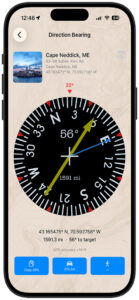
GeoReturn guides you back to any location you’ve marked — using an ADF-style compass that points directly toward your saved coordinates, with bearing and distance updating in real time. No internet connection required.
Feature overview
| Feature | What it does |
|---|---|
| ADF compass | A bearing arrow locked to your saved coordinates rotates with your heading and always points toward your destination. |
| Live distance readout | Real-time distance from your position to your saved spot, displayed in your preferred units (feet/miles or meters/kilometers). |
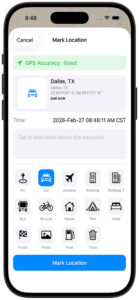
| Mark any spot | Saves your exact GPS coordinates to the meter with a single tap — no address, no cell signal required. |
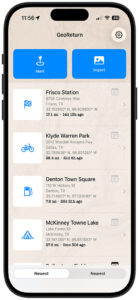
| Spot management | Name, rename, and manage multiple saved locations; each entry shows its live distance from your current position. |
| GeoLog integration | Receives any GeoLog location via one-tap deep link, including the original camera heading, and loads it as the active navigation target. |
| Offline operation | All navigation runs on-device using GPS and compass hardware — no network connection needed in the field. |
Getting started
1. Download and grant permissions
When GeoReturn opens for the first time, iOS will ask for permission to access your location. Tap Allow While Using App. GeoReturn needs your location to calculate bearing and distance to your saved spots. Without it, the compass has no reference point and cannot navigate.
2. Mark your first spot
Stand at a location worth returning to and tap Mark Spot on the navigation screen. Wait a moment for the GPS accuracy reading to settle — ideally to 8 meters or better — then save. Name the spot something specific enough to be useful later: “Tide Pool North End” or “Sunrise Ledge” rather than “Spot 1.” The spot is now saved and set as your active navigation target.
3. Navigate back to it
When you’re ready to return, open GeoReturn and confirm the spot name at the top of the screen matches your destination. Hold your phone at a comfortable reading angle and walk in the direction the bearing arrow points. The distance readout will count down as you approach. When the arrow points straight up, you’re heading directly toward your mark.
4. Explore the rest
Tap My Spots to manage all your saved locations. If you use GeoLog, open any saved GeoLog location and tap the GeoReturn button to send it directly to GeoReturn with full coordinates and camera heading. For any screen you have questions about, tap the ? button for in-app help.
Permissions
Location → Allow While Using App (minimum) or Always GeoReturn uses your GPS position continuously while navigating to calculate bearing and distance to your saved spot. If location access is set to Never, the compass cannot function. Always access is optional but allows GeoReturn to update your position in the background when returning to the app.