
Version 2. – January 2026
CameraTimeSync displays a GPS-synchronized time reference that each photographer at an event photographs with their camera. After the shoot, that single image gives Lightroom the correction offset to align every photo from every camera to a common timeline — no manual clock adjustments, no guesswork.
Features
| Feature | What it does |
|---|---|
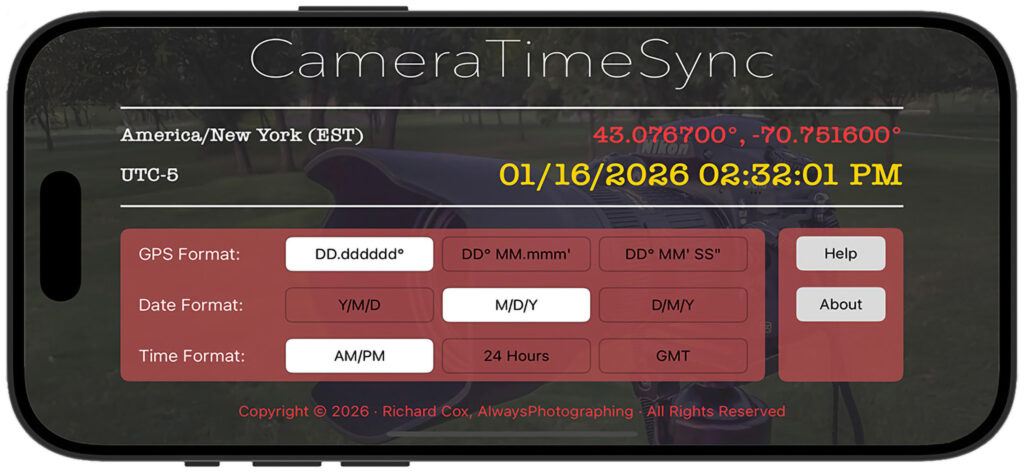
| GPS time display | Shows the current time pulled directly from GPS satellite signals, updated every second, accurate to the second worldwide. |
| Large date/time readout | Displays date and time at a size and contrast designed to be photographed and read back in Lightroom. |
| Timezone and UTC offset | Shows full timezone name and UTC offset so reference photos carry complete time context for international or mixed-timezone teams. |
| GPS coordinates | Displays your current location in the selected format — useful for confirming all photographers are at the same venue. |
| GPS coordinate format | Switches between decimal degrees, degrees-minutes, and degrees-minutes-seconds to match your team’s convention. |
| Date format | Switches between Y/M/D, M/D/Y, and D/M/Y. |
| Time format | Switches between 12-hour (AM/PM) and 24-hour display. |
| iPad support | Scales to the full iPad display for larger teams or challenging light conditions where a phone-sized screen is harder to photograph. |
Getting Started
Step 1. Download and grant permissions
Install CameraTimeSync and open it. The app will request access to your location — grant Always or While Using the App. Without location access, the GPS time display cannot lock and the app cannot fulfill its purpose.
Step 2. Wait for GPS lock and configure the display
On first open, allow 10–30 seconds for the GPS signal to stabilize — coordinates will appear and stop changing when you have a good lock. Set your GPS coordinate format, date format, and time format to match your team’s convention. Raise screen brightness to maximum before the reference capture session begins.
Step 3. Photograph the display with each camera
Have each photographer frame the full CameraTimeSync screen with their event camera and take a clear, sharp reference photo. Each person’s photo will show a slightly different time — that’s expected and correct. Confirm each reference photo is readable before moving on. The goal is to complete all reference captures within a two-minute window.
Step 4. Explore the in-app help
Tap the ? button on any screen for detailed guidance on the Lightroom sync workflow, display format options, and tips for large teams and outdoor conditions.
Permissions
Location → While Using the App (minimum) CameraTimeSync uses GPS signals exclusively for time synchronization. Without location access, the GPS time display cannot lock and the app displays no time. No location data is stored, transmitted, or used for any other purpose.