CameraTimeSync is a companion app to PhotoSlate, designed for photographers who shoot with multiple cameras and need perfect time alignment in post. Whether you’re syncing mirrorless, DSLR, or mixed brands, CameraTimeSync ensures every image lines up—without touching your camera’s internal clock.
The Problem
When multiple photographers shoot the same event with different cameras, each camera’s internal clock is likely set to a different time. This creates chaos during post-processing when trying to sequence photos chronologically. Traditional solutions require manually adjusting each camera’s clock before shooting, which is time-consuming and error-prone.
The Solution
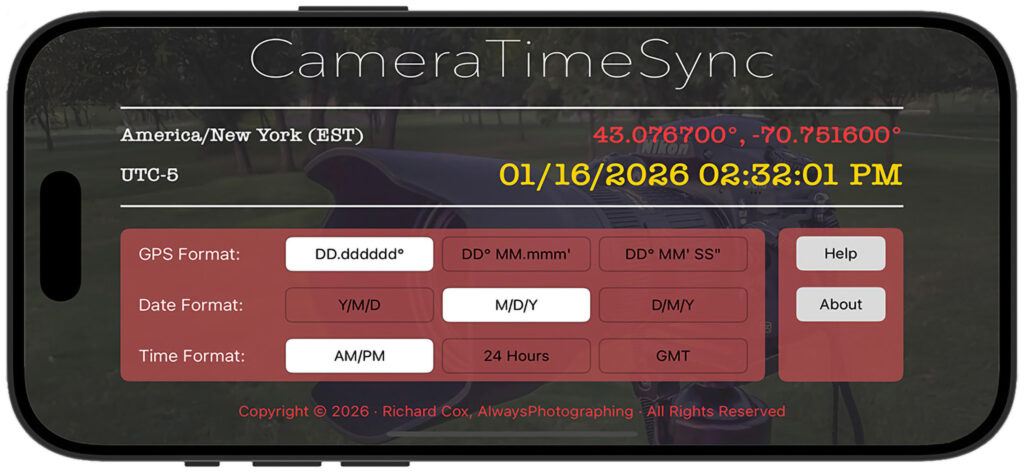
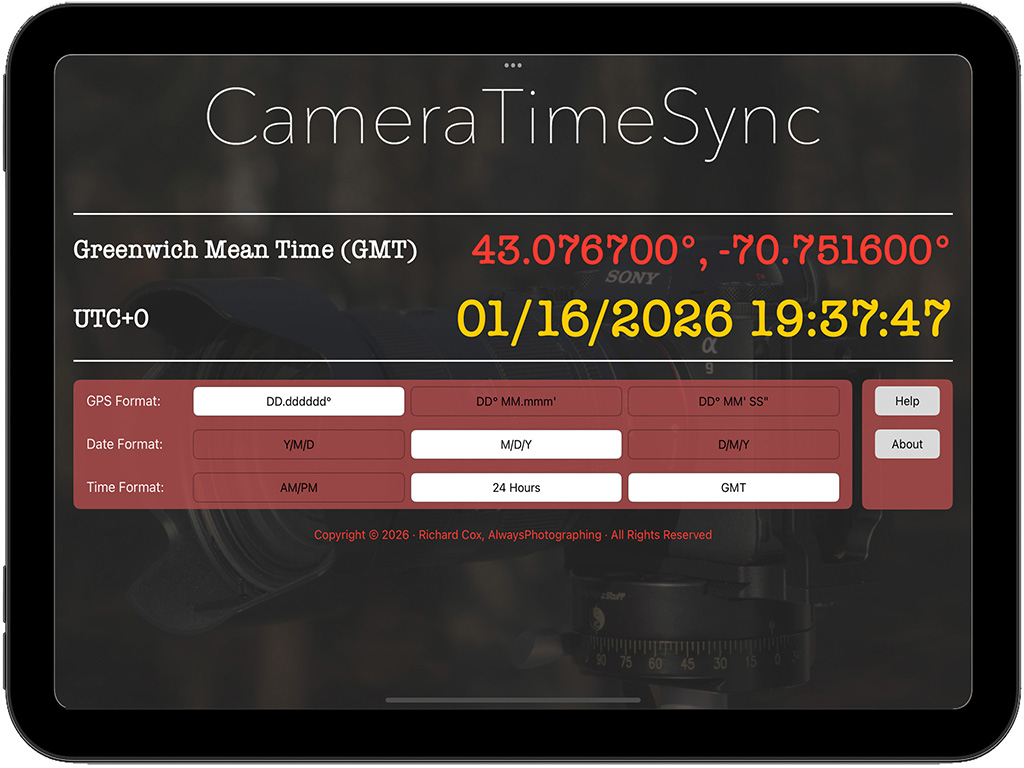
CameraTimeSync provides a single, authoritative time reference that all cameras photograph. The app displays:
- Precise GPS-sourced time updated every second
- GPS coordinates in multiple formats
- Timezone information with UTC offset
- Multiple date/time formats for international compatibility
By photographing this reference card with each camera at the start of your shoot, you create a known timestamp that Lightroom can use to calculate and correct each camera’s clock offset—adjusting all photos from that camera automatically.
Use Cases
- Event photography with multiple photographers
- Sports photography with team coverage
- Wedding photography with primary and secondary shooters
- Photojournalism with correspondent teams
- Workshop instruction where students’ cameras need time alignment
- Any multi-camera shoot where chronological sequencing matters
How It Works
- Before Your Shoot
Open CameraTimeSync and photograph its cue card with each camera. This records the exact time and GPS coordinates in a single reference image per device.
- After Your Shoot
Use Adobe Lightroom to adjust each camera’s capture time based on its cue card image. All photos will be synced to the same timeline, regardless of internal clock drift.
Lightroom Workflow
Filter by Camera Serial Number
To avoid adjusting the wrong camera’s photos:
- In Lightroom’s Library module, press \ to show the Library Filter bar.
- Select Metadata, hover over the Camera label, click the icon, and choose Add Column.
- Set the new column to Camera Serial Number.
Adjust Capture Time
For each camera:
- Select its serial number to isolate its photos.
- Find the image of the CameraTimeSync cue card.
- Open it in Loupe View (E key or double-click).
- Select all photos in the tray (Ctrl+A or Cmd+A).
- Go to Metadata → Edit Capture Time.
- Choose Adjust to a specific date and time.
- Enter the time shown on the cue card image.
- Click Change, then return to Grid View (E key).
- Repeat for each camera.
Why It Matters
- No need to set camera clocks manually
- Works across brands and models
- Ideal for events, travel, and multi-angle shoots
- Pairs perfectly with PhotoSlate for full metadata control