


Version 1.0 AlwaysPhotographing.com
Table of Contents
Introduction
GeoReturn is a precision GPS navigation app designed to guide you back to exact locations — not just general areas. While standard mapping apps navigate you to addresses and parking lots, GeoReturn navigates you to the spot: the exact rock, overlook, tide pool, trailhead, or composition point where you stood.
Using an ADF-style aviation compass interface, GeoReturn displays a real-time directional arrow and distance readout that guide you step by step back to any location you have marked — no internet connection required.
Requirements
- iPhone running iOS 17.0 or later
- Location Services enabled for GeoReturn
- For GeoLog integration: GeoLog V2.1 or later
Getting Started
First Launch
On first launch, GeoReturn will request permission to access your location. Tap Allow While Using App or Allow Always to enable full navigation functionality.
Note: GeoReturn requires location access to determine your current position and calculate bearing and distance to your saved spots. Location data is stored only on your device and is never transmitted.
Orientation
GeoReturn uses your device’s GPS and compass hardware. For best results:
- Hold your phone naturally in front of you, screen facing up at a comfortable reading angle.
- Make sure you are outdoors or near a window when taking GPS readings.
- Allow a few seconds for GPS accuracy to stabilize after opening the app.
Interface Overview
The GeoReturn interface is organized around the Navigation Screen, which is the primary view you will use in the field.
Navigation Screen
┌─────────────────────────────┐
│ SPOT NAME │
│ │
│ [ ADF COMPASS ] │
│ bearing arrow here │
│ │
│ 123 ft / 45 m │
│ Distance │
│ │
│ [ Mark Spot ] [ My Spots ]│
└─────────────────────────────┘
Spot Name — The name of the currently selected destination spot. Tap to change the active spot.
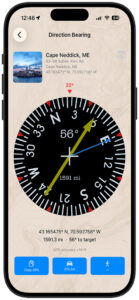
ADF Compass — The directional compass rose with a bearing arrow pointing toward your saved spot. The compass rotates as you move and turn, keeping the arrow always pointing toward your destination.
Distance Readout — Real-time distance from your current location to your saved spot, displayed in feet/miles or meters/kilometers based on your iOS regional settings.
Mark Spot — Saves your current GPS location as a new spot.
My Spots — Opens the Spots List to view, select, rename, or delete your saved locations.
Marking a Location
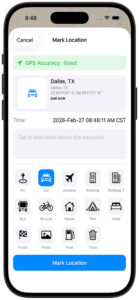
Marking a location saves your current GPS coordinates so you can navigate back to that exact point later.
To Mark a Spot
- Stand at the location you want to save.
- Wait for the GPS accuracy indicator to show a satisfactory reading (see Accuracy and GPS Guidance).
- Tap Mark Spot.
- Enter a name for your spot (e.g., “Tide Pool North End”, “Campsite”, “Sunrise Overlook”).
- Tap Save.
Your spot is now saved and set as the active navigation destination.
Quick Mark
For fast marking without naming, tap Mark Spot and tap Save without entering a name. The spot will be saved with a default name based on the date and time (e.g., “Spot Feb 27, 2026 6:42 AM”). You can rename it later from My Spots.
Navigating to a Saved Spot
Once you have a saved spot and are ready to return to it:
- Open GeoReturn.
- Confirm the spot name shown at the top of the Navigation Screen matches your destination. If not, tap the name and select the correct spot from My Spots.
- Walk in the direction the ADF compass arrow is pointing.
- Watch the distance readout decrease as you approach.
- When the distance reaches zero (or near zero within GPS accuracy), you have arrived.
Reading the Compass
The ADF-style compass arrow always points toward your saved spot relative to the direction you are facing. If the arrow points straight up, you are walking directly toward your spot. If it points left, turn left. The compass continuously updates as you move and change direction.
Tip: For best compass accuracy, hold your phone at a consistent angle in front of you and avoid bringing it near metal objects or magnetic cases.
Managing Your Saved Spots
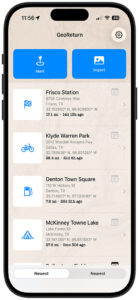
Tap My Spots from the Navigation Screen to open the Spots List.
Spots List
The Spots List displays all of your saved locations with their name, saved date, and distance from your current location.
Selecting a Spot — Tap any spot to set it as the active navigation destination and return to the Navigation Screen.
Renaming a Spot — Swipe right on a spot and tap Rename, or tap the spot detail to edit its name.
Deleting a Spot — Swipe left on a spot and tap Delete. Deletion is permanent and cannot be undone.
Spot Detail — Tap the info icon on any spot to view its full details: saved coordinates (latitude and longitude), altitude, date saved, and address (if available).
Importing Locations from GeoLog
If you use GeoLog (AlwaysPhotographing.com), you can send any saved GeoLog location directly to GeoReturn with a single tap.
How It Works
- In GeoLog, open any saved location.
- Tap the Navigate with GeoReturn button.
- GeoReturn will open automatically with the location loaded as the active navigation destination.
- The imported location will also be saved to your My Spots list for future use.
Requirements
- GeoLog V2.1 or later installed
- GeoReturn installed on the same device
- Both apps updated to their current versions
Note: If GeoReturn is not installed, GeoLog will offer a link to download GeoReturn from the App Store.
Understanding the ADF Compass
GeoReturn’s compass is inspired by the Automatic Direction Finder (ADF) instrument used in aviation — a bearing pointer that always points toward a fixed radio beacon, regardless of aircraft heading.
In GeoReturn, your saved spot acts as the beacon. The compass bearing arrow continuously points toward it as you move through the environment. Unlike a standard map, which requires you to mentally translate your position relative to a north-up display, the ADF compass is always relative to where you are facing — making it intuitive to follow on foot.
Compass Elements
Compass Rose — The circular degree dial showing cardinal directions (N, S, E, W) and degree markings. The rose rotates with your heading so North always reflects true north.
Bearing Arrow — The primary navigation pointer. It always points toward your saved spot. Follow this arrow.
Heading Indicator — The fixed marker at the top of the compass (12 o’clock position) indicates the direction you are currently facing.
When the Arrow Points Up
When the bearing arrow points straight up (toward the 12 o’clock position), you are walking directly toward your saved spot. This is the ideal walking direction.
Accuracy and GPS Guidance
GPS accuracy varies depending on your environment, device, and signal conditions. Understanding accuracy will help you get the most from GeoReturn.
GPS Accuracy Indicator
GeoReturn displays a GPS accuracy value in meters on the Navigation Screen. This represents the estimated margin of error in your current position reading.
| Accuracy | Conditions |
|---|---|
| 3–8 meters | Excellent — open sky, clear signal |
| 8–20 meters | Good — light tree cover or urban |
| 20–50 meters | Fair — heavy tree cover or near buildings |
| 50+ meters | Poor — consider waiting for better signal |
Tips for Better Accuracy
- Stay outdoors. GPS signals are significantly degraded indoors and in underground parking structures.
- Wait for lock. After opening GeoReturn, allow 10–20 seconds for your GPS to stabilize before marking a spot.
- Mark in the open. When saving a spot, move to the most open area possible (away from tall buildings or dense canopy) before tapping Mark Spot.
- Approach slowly. As you near your destination and the distance drops below 10 meters, slow your pace. GPS drift may cause minor fluctuations at very close range.
Indoor Limitations
GeoReturn is designed for outdoor use. In indoor environments or underground parking, GPS signals are unreliable and the compass and distance readout may not perform accurately. For best results, mark your spot outdoors at the entry point of any indoor area.
Tips and Best Practices
For Photographers
- Mark your spot before you set up your tripod, not after. This saves the exact position you want to return to, not a position a few feet away.
- Name spots descriptively: “Arch Overlook — Sunrise” is more useful than “Spot 1.”
- Use GeoLog to record full location details (sun/moon data, notes, photos) and use GeoReturn for fast field navigation back to those spots.
For Hikers and Backpackers
- Mark your trailhead or parking area before heading into the wilderness — it is often harder to find than the destination.
- Mark camp at first light when GPS accuracy is best, not after dark.
- Save multiple spots along a route to create simple breadcrumb navigation.
For Events and Crowded Areas
- Mark where you parked before walking away from your car — fairgrounds, air shows, and festivals are the most common use case.
- Mark your spot at the entrance or a landmark, not just the car itself, in case GPS drift makes close-range navigation harder.
Naming Conventions Consistent naming makes your Spots List much easier to use in the field:
- Location first: “Maine — West Quoddy Tide Pool”
- Include time context when relevant: “Palouse — Steptoe Butte Sunrise”
- Use car/parking notes: “Car — Lot C Row 7”
Troubleshooting
The compass arrow is spinning or erratic. This usually indicates poor GPS signal or compass interference. Move outdoors to an open area and wait for GPS accuracy to stabilize. Avoid metal objects, cases with magnets, or areas near large metal structures.
The distance readout is not decreasing as I walk toward my spot. Verify you are walking in the direction the bearing arrow is pointing, not toward north. The arrow, not the compass rose orientation, shows your direction of travel. Also confirm the correct spot is selected in My Spots.
My saved spot is gone. Spots are stored on-device using SwiftData. Deleting and reinstalling GeoReturn will remove all saved spots. If you use iCloud backup, spots may be restored from backup. Spots cannot currently be recovered if the app is deleted without a backup.
GeoLog is not launching GeoReturn. Ensure both apps are updated to their current versions. GeoLog requires V2.1 or later for GeoReturn deep linking. If the button is grayed out in GeoLog, GeoReturn may not be detected — try closing and reopening GeoLog.
GPS accuracy stays poor indoors. GeoReturn is designed for outdoor use. GPS accuracy indoors is a hardware limitation of iPhone GPS and cannot be improved by the app. Move outdoors for accurate navigation.
Privacy
GeoReturn collects no personal data and makes no network requests. All saved locations are stored locally on your device using Apple’s SwiftData framework.
- Location data is never transmitted to any server.
- GeoReturn does not track your movement history beyond saved spots.
- No account or login is required.
- GeoReturn contains no advertising.
For the full privacy policy, visit: alwaysphotographing.com/apps/georeturn/georeturn-privacy-policy
GeoReturn is developed by AlwaysPhotographing.com © 2026 AlwaysPhotographing.com — All Rights Reserved