
Overview
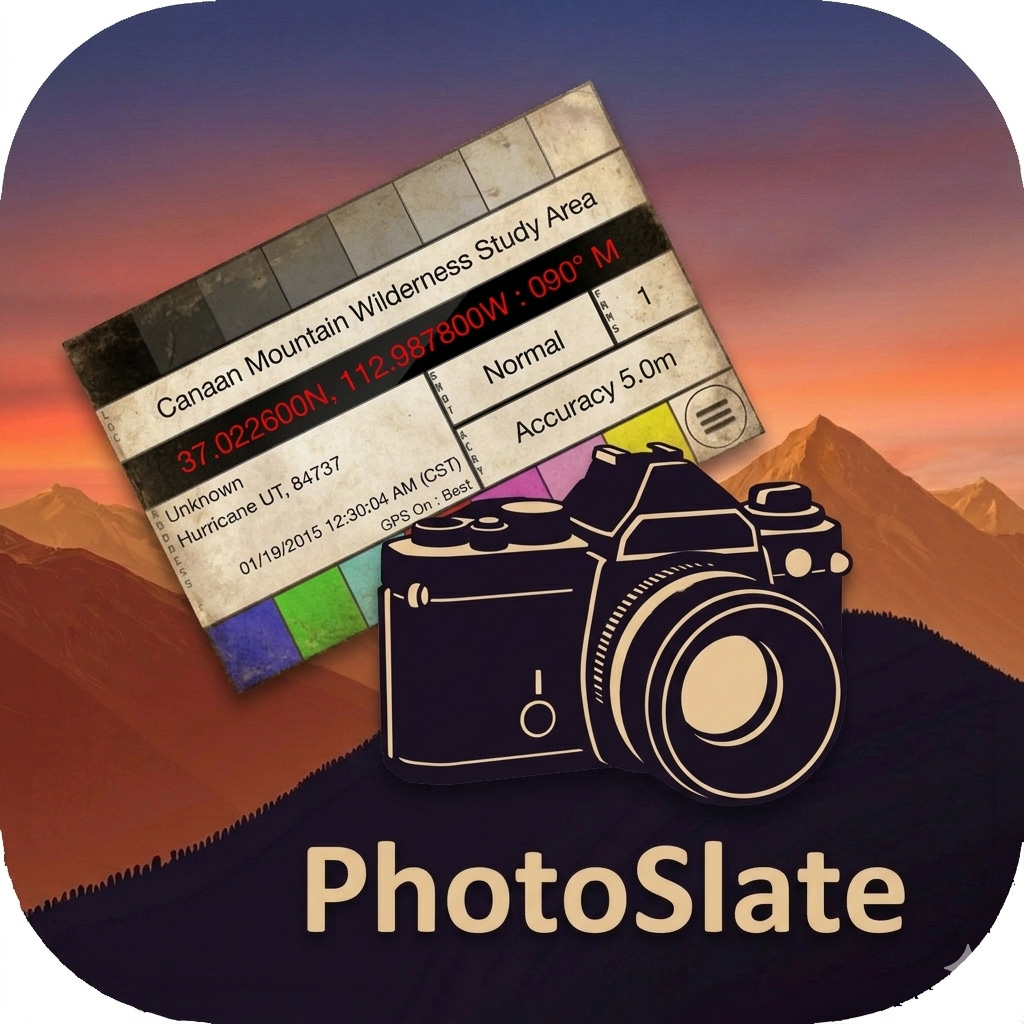
PhotoSlate is a location-aware digital slate for photographers using cameras without built-in GPS. It displays location, time, and other metadata that you can photograph at the beginning of a shoot to embed that information into your photo sequence. This document provides support information, troubleshooting tips, and answers to frequently asked questions.
Getting Help
PhotoSlate is developed and maintained by a solo developer. While I do my best to respond to support requests, please understand that this is a free app and support is provided on a best-effort basis.
Contact
For technical support, feature requests, or questions:
- Email: support@alwaysphotographing.com
- Website: https://alwaysphotographing.com
I typically respond within a few days when I have time, but please be patient during busy periods.
If You Need to Contact Me
To help me understand and address your issue more quickly, please include:
- iOS version
- Device model (iPhone/iPad)
- PhotoSlate app version (found in Settings > About)
- Clear description of the issue
- Steps to reproduce the problem
- Screenshots if helpful
Frequently Asked Questions
General Usage
Q: What is PhotoSlate used for?
A: PhotoSlate is a digital version of a filmmaker’s slate (clapperboard) designed for photographers. You display location, time, and other information on your iPhone/iPad screen, then photograph it with your camera. This embeds that metadata into your photo sequence, especially useful for cameras without built-in GPS.
Q: Why would I photograph my iPhone screen instead of just using my phone’s camera?
A: If you’re using a mirrorless or DSLR camera without GPS (like many Canon, Nikon, Sony, or Fuji cameras), you have no way to add location data to your photos. PhotoSlate gives you a simple way to capture that information as the first shot of your session.
Q: Do I need to photograph the slate for every single photo?
A: No, typically you photograph the slate once at the beginning of a shoot or when you change locations. You can then reference that slate photo later when organizing or tagging your images.
Location Features
Q: How accurate is the location information?
A: Location accuracy depends on your iPhone/iPad’s GPS signal. In open areas with clear sky, you’ll typically get accuracy within 5-10 meters. In urban areas or indoors, accuracy may be reduced.
Q: What if I don’t have GPS signal?
A: PhotoSlate will display “GPS Unavailable” if there’s no signal. The app will keep trying to acquire a signal. For best results, use PhotoSlate outdoors or near a window.
Q: What is reverse geocoding?
A: Reverse geocoding converts GPS coordinates into a readable address (like “Central Park, New York, NY”). This is optional in PhotoSlate and requires an internet connection. When enabled, it uses Apple’s geocoding service.
Q: Can I use PhotoSlate without an internet connection?
A: Yes. GPS works without internet. However, if you want reverse geocoding (address lookup), you’ll need an internet connection for that feature.
Privacy & Data
Q: Does PhotoSlate track my location?
A: No. PhotoSlate only accesses your location when the app is open and visible on your screen. It doesn’t track you in the background or store any location history. All processing happens locally on your device.
Q: What data does PhotoSlate collect?
A: PhotoSlate doesn’t collect or transmit any personal data. Your location is only used to display coordinates on screen – it’s never stored or sent anywhere. The only exception is if you enable reverse geocoding, which sends coordinates to Apple’s service to get an address.
Q: Can I use PhotoSlate without granting location permission?
A: The app will open, but you’ll see “GPS Unavailable” instead of coordinates and time. Location permission is required for PhotoSlate to function properly.
Display Features
Q: What information can PhotoSlate display?
A: PhotoSlate displays:
- GPS coordinates (in various formats)
- Current date and time
- Reverse geocoded address (optional)
- Timezone information
- GPS accuracy indicator
Q: Can I customize what’s displayed?
A: Yes, you can adjust settings for:
- GPS coordinate format (decimal degrees, degrees-minutes-seconds, etc.)
- Date format (Y/M/D, M/D/Y, D/M/Y)
- Time format (12-hour or 24-hour)
- Reverse geocoding on/off
Q: Why does the display look different on iPad vs iPhone?
A: The display adapts to different screen sizes. On iPad, you get a larger display with more information visible at once.
Using PhotoSlate
Q: What’s the typical workflow?
A:
- Open PhotoSlate at your shooting location
- Wait for GPS to lock (a few seconds)
- Hold your iPhone/iPad steady
- Take a photo of the screen with your camera
- Continue shooting with your camera
- Later, reference the slate photo to add location data to your images
Q: Should I use landscape or portrait orientation?
A: Use whatever works best for your camera setup. The display adapts to both orientations. Many photographers prefer landscape since it matches most camera orientations.
Q: Can I adjust the screen brightness?
A: Use your device’s standard brightness controls. For photographing the screen, you may want to increase brightness to avoid exposure issues.
Troubleshooting
Location Issues
Problem: “GPS Unavailable” message won’t go away
Solution:
- Make sure you’re outdoors or near a window
- Check that Location Services are enabled (Settings > Privacy > Location Services)
- Verify PhotoSlate has location permission (Settings > Privacy > Location Services > PhotoSlate)
- Try force-closing and reopening the app
- GPS can take 30-60 seconds to acquire initial signal
Problem: Location is inaccurate
Solution:
- Make sure you have clear view of the sky (GPS needs satellite signals)
- Wait a minute for GPS to stabilize – accuracy improves over time
- Check the accuracy indicator on screen
- Indoor locations will always have reduced accuracy
- Urban canyons (tall buildings) can affect GPS accuracy
Problem: Reverse geocoding isn’t working
Solution:
- Make sure you have an internet connection
- Verify reverse geocoding is enabled in Settings
- Some locations may not have detailed address data available
- Try again in a few moments – the service may be temporarily busy
App Issues
Problem: The app crashes on launch
Solution:
- Force quit the app completely
- Restart your device
- Make sure you’re running a recent iOS version
- Check for app updates in the App Store
- If it still crashes, try deleting and reinstalling
Problem: Display is hard to read
Solution:
- Increase screen brightness
- Try changing between light/dark mode in iOS settings
- Make sure your camera’s exposure is set correctly when photographing the screen
- Consider photographing in shade to reduce screen glare
Problem: Time seems wrong
Solution:
- Check your device’s time settings (Settings > General > Date & Time)
- Make sure “Set Automatically” is enabled
- Verify your timezone is correct
- GPS time should be accurate – if your device time is wrong, GPS time will still be correct
Permission Issues
Problem: App keeps asking for location permission
Solution:
- Go to Settings > Privacy & Security > Location Services
- Find PhotoSlate in the list
- Select “While Using the App”
- Make sure Location Services is enabled at the top
Problem: Can’t enable reverse geocoding
Solution:
- Reverse geocoding requires location permission
- Make sure you’ve granted location permission first
- An internet connection is required for this feature
Known Limitations
- GPS requires clear view of satellites (reduced accuracy indoors)
- Initial GPS lock can take 30-60 seconds
- Reverse geocoding requires internet connection
- GPS accuracy varies by device model and environmental conditions
- Some remote locations may not have detailed address data
Feature Requests
I’m always interested in hearing how PhotoSlate could be more useful for your photography workflow. If you have suggestions:
- Email me with your ideas
- No guarantees on implementation, but I do consider all feedback
- Features that benefit many users are more likely to be prioritized
Privacy Policy
For detailed information about how PhotoSlate handles your data, please review our Privacy Policy at: [Your privacy policy URL]
Version History
Current version: [Version number]
For release notes and version history, check the App Store listing or visit the website.
Additional Resources
- User Manual: [Link to detailed user manual if available]
- Website: https://alwaysphotographing.com
- Other Apps: Check out our other photography apps including GeoLog and CameraTimeSync
Last Updated: January 2026
Quick Tips for Better Results
- Wait for GPS Lock: Give GPS 30-60 seconds to acquire a good signal before photographing the slate
- Check Accuracy: Look at the accuracy indicator – wait until it’s reasonable (under 50m is good)
- Photograph in Shade: Reduces glare on the screen for better readability
- Increase Brightness: Turn up screen brightness before photographing
- Use Manual Focus: On your camera, use manual focus to ensure the screen text is sharp
- Bracket Exposure: Take a few shots at different exposures to ensure readability
- Reference Multiple Slates: If shooting in multiple locations during one session, take a new slate photo at each location
Photography Workflow Integration
Typical Use Cases
Location Scouting:
- Photograph the slate at each potential location
- Reference slate photos when reviewing locations later
- Add location notes to your scouting images
Event Photography:
- Take a slate photo at the start of the event
- Reference it later when organizing photos
- Useful for multi-location events
Travel Photography:
- Photograph slate at interesting locations
- Makes it easy to remember where photos were taken
- Especially useful when shooting with multiple cameras
Real Estate/Commercial:
- Document exact location of property shoots
- Include slate in your workflow for client records
- Helps organize shoots across multiple properties
Still Need Help?
If you couldn’t find the answer here, feel free to reach out. I’m just one person maintaining this as a free app alongside other projects, so please be patient, but I do want to help if I can.
Email: [Your support email]
Website: https://alwaysphotographing.com
Thanks for using PhotoSlate!