A powerful iOS and iPadOS photography companion app
Version 2.0 – January 2026
Quick Start
GeoLog helps photographers capture and organize photos by location with automatic GPS tracking. Take photos with the built-in camera, and GeoLog remembers exactly where you took them.
First Time Setup:
- Grant Location and Camera permissions when prompted
- Tap Camera to take your first photo
- Wait for GPS lock (camera icon in Dynamic Island)
- Your photo is automatically saved with location data
Taking Photos
Basic Camera Use
Tap Camera from the menu to start shooting. The app captures GPS coordinates, heading, and altitude with every photo.
Camera Tips:
- Wait a few seconds for GPS to lock before shooting
- The Dynamic Island shows the current camera lens (1×, 2×, 3×, etc.)
- Switch between front/back cameras using the flip button
- Photos are grouped automatically by location
Adding to Existing Locations
Two ways to add photos:
- From the map: Tap a location pin → tap camera icon → photos go to that location
- From photo review: After taking photos, choose “Add to Existing Location” and select where they should go
Gallery Photos from Camera Roll
To add photos from your photo library to a location:
- Option 1: Tap the (+) button in a location’s gallery view
- Option 2: Open a location → tap the menu (•••) → “Add Photos” → select from your library
Understanding Locations
GeoLog automatically creates locations when you take photos. Each location includes:
- Main photo (the hero shot)
- Photo gallery (additional shots)
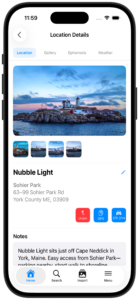
- GPS coordinates and address
- Notes and tags
Unknown Locations
When you’re offline, GeoLog saves photos with coordinates but can’t look up the address (geocoding requires internet). These show as “Unknown Location.”
To fix later:
- Open the location with “Unknown Location”
- Tap Retry Geocoding when you have internet
- GeoLog looks up the address and updates the location name
Import Decisions
When you take photos using the camera from the side menu, GeoLog asks what to do with them:
- Create New Location: Makes a new location with these photos
- Add to Existing Location: Merges photos with a location you choose from the map
The app decides based on GPS distance—if you’re close to an existing location, it suggests adding there. If you’re somewhere new, it suggests creating a new location.
Exposure Calculator & Timer
Calculating Exposures
Need to figure out settings for long exposures with ND filters? The Exposure Calculator handles it:
- Tap Exposure Calculator from menu
- Set your base exposure (aperture, shutter, ISO)
- Add filters if needed (ND8, ND64, polarizer, etc.)
- The calculator shows your corrected shutter speed
For film photographers, select your film stock and GeoLog automatically applies reciprocity failure corrections.
Using the Timer
For long exposures, swipe to the timer page:
- Your calculated exposure time is already loaded
- Tap Start Timer
- Timer runs with Live Activity in Dynamic Island
- Choose sound mode (countdown beeps) or silent mode (haptic vibrations)
Timer Features:
- Runs in the background—lock your phone, switch apps, take calls
- Shows in Dynamic Island and on Lock Screen
- Sends notifications at key times (10 min, 2 min, completion)
- Works with Always-On Display (iPhone 14 Pro+)
Notifications:
- 10 minutes remaining for very long exposures
- 2 minutes remaining to prepare for completion
- Timer complete when exposure is finished
My Gear
Track your cameras and lenses in Settings → My Gear:
- Tap Add Camera
- Enter camera name and format (Full Frame, Medium Format, etc.)
- Add lenses with their focal lengths
- Select which camera you’re using
Where Gear is Used:
- Camera view with crop marks—visualize different lens framing
- Exposure calculator—shows which camera you’re calculating for
- Photo metadata—records which gear was used
Sun Rays
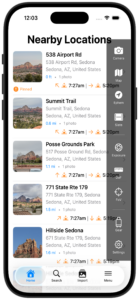
Sun Rays show the direction of sunlight at sunrise or sunset for each location on your home screen.
What are Sun Rays? Small arrows on location cards show where the sun will be:
- Up arrow (↑): Sun behind you at this time
- Down arrow (↓): Sun in front/above subject at this time
This helps you plan when to return to a location based on lighting direction.
Enable Sun Rays: Settings → Display → Show Sun Rays
Map View
See all your photos on an interactive map:
- Pins show each location
- Tap a pin to see details
- Tap View Details to browse all photos
- Use the camera icon to add more photos to that spot
Pin your favorite locations (tap the pin icon) so they stand out on the map.
Backup & Restore
Creating Backups
Settings → Backup & Restore → Create Backup
Backups include all photos, locations, notes, and tags. They’re saved as ZIP files you can share via AirDrop, iCloud Drive, or other apps.
Backup Tips:
- Create backups before major trips
- Store backups in multiple places (iCloud, external drive)
- Backup names include date/time for easy identification
Restoring from Backup
Settings → Backup & Restore → Restore from Backup → Choose file
Important: Restoring replaces all current data. Create a new backup first if you want to keep existing photos.
Settings
Camera Settings
- Select active camera gear
- Enable/disable crop marks
- Choose coordinate format
Display Settings
- Show/hide Sun Rays
- Date and time formats
- Measurement units
Notifications
- Timer alerts
- Background operation
iPad Features
GeoLog is optimized for iPad with:
- Side-by-side map and photo views
- Enhanced photo galleries
- Larger display for exposure calculator and tools
- Keyboard shortcuts (Cmd+M for map, Cmd+E for exposure calculator)
Note: The camera feature is only available on iPhone. Use your iPhone to capture photos with GPS, then view and organize them on iPad.
Tips
Before Shooting:
- Wait for GPS lock (a few seconds)
- Check your active camera in My Gear if using exposure calculator
Organizing Photos:
- Pin locations you visit frequently
- Add notes while at the location (easier to remember details)
- Use tags to categorize spots (“Sunrise,” “Wide Angle,” etc.)
For Best GPS:
- Shoot outdoors when possible
- Open areas have faster GPS lock
- Indoor shots may have reduced accuracy
Exposure Calculations:
- Calculate before arriving at the location
- Timer runs in background—you can lock your phone
- Enable Time Sensitive notifications for timer alerts
Privacy
GeoLog respects your privacy:
- All data stays on your device
- No tracking or analytics
- No cloud sync (unless you use iCloud backup)
- Location only used when you’re taking photos
Backups contain your photos and location data—keep them secure and only share through trusted channels.
Need Help?
For detailed feature documentation, see the component manuals:
© 2026 GeoLog. All rights reserved.